
Handling vast datasets and extracting key financial insights is at the heart of an accountant’s work. With large spreadsheets, isolating specific data can be time-consuming, and manual calculations can increase the risk of errors. Enter SUMIF and COUNTIF — powerful Excel functions that can save time, boost accuracy, and make financial analysis more efficient. In this post, we’ll explore how these functions can simplify totaling open receivables, counting transactions, and other key accounting tasks along with showing a practical example for SUMIF and practical example for COUNTIF.
What Are SUMIF and COUNTIF Functions?
The SUMIF and COUNTIF functions in Excel are essential tools for accountants to manipulate and analyze data efficiently. SUMIF adds up values that meet a certain condition. For instance, you can easily total all open receivables for a particular client or within a certain timeframe. COUNTIF, on the other hand, counts the number of entries that meet specific criteria. Imagine wanting to know how many transactions exceed a specific value — COUNTIF has you covered. These functions offer a simple way to quickly extract insights, without having to manually filter or sift through data.
Key Applications of SUMIF and COUNTIF in Accounting
...
Using SUMIF to Total Open Receivables
Using SUMIF to total open receivables helps improve cash flow management and track outstanding payments. For example, you can use SUMIF to sum up the total dollar amount for unpaid invoices by a specific client or due date. This allows you to quickly see how much each client owes, helping you prioritize follow-ups and manage collections.
Calculating Total Expenses by Category
SUMIF is also great for calculating total expenses in different categories, such as travel, office supplies, or utilities. By totaling expenses by category, accountants can streamline budgeting and assess which areas are contributing most to overall spending. For example, you can use SUMIF to determine the sum of travel expenses within your expense ledger, making it easy to assess budget adherence.
Using COUNTIF for High-Value Transactions
With COUNTIF, accountants can easily determine the number of transactions that exceed a certain dollar amount. This is particularly helpful when trying to identify high-value sales or expenses. For example, you can count how many sales transactions are greater than $1,000. This helps gain insights into spending habits, potential big clients, or high-priority accounts.
Counting Payment Frequency with COUNTIF
COUNTIF can also help you count how often specific payment events occur, such as payments received on a particular day of the week or how often clients pay late. Monitoring payment frequency allows for better cash flow forecasting and improved financial planning.
Practical Example of Using SUMIF
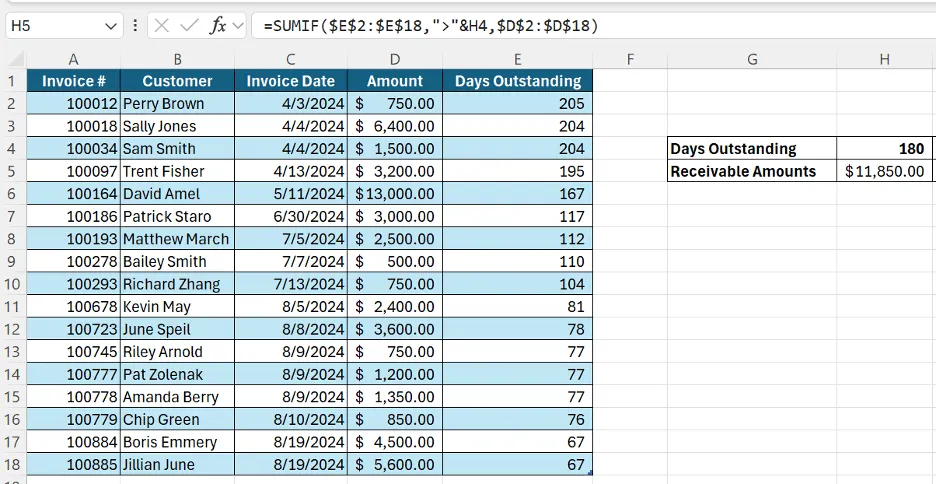
Company XYZ has the following accounts receivable data: a list of invoices with dates, amounts due, and days outstanding. We can use the SUMIF formula to calculate the receivables over 180 days outstanding.
The first part of the formula is the range of cells we want to evaluate based on our criteria, which is how many days the receivables are outstanding (cells E2 to E18). The next part is the criteria, which is any cell greater than 180 days (the amount in cell H4). Finally, the last part of the formula is the range of cells we want to sum, which is the outstanding receivable amounts (cells D2 to D18). The formula calculates $11,850 of receivable outstanding over 180 days (cell H5).
If we want to evaluate our range using more than one criterion, we can take the SUMIF a step further and use SUMIFS.
The formula syntax for SUMIFS is:
=SUMIFS(range of cells to sum, range of cells to evaluate based on the criteria1, criteria1, [criteria_range2, criteria2], ...)
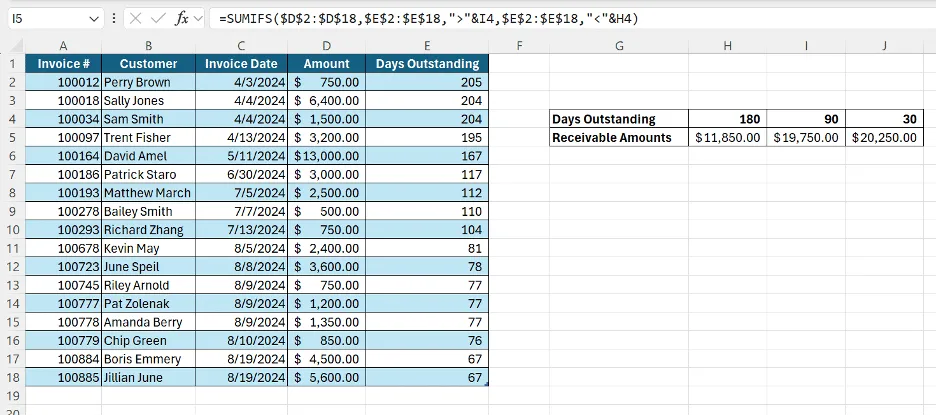
In our accounts receivable example, we can use this formula to sum the receivables greater than 90 days old but less than 180 days old (the formula shown in the picture below) and receivables greater than 30 days old but less than 90 days.
The first part of the formula is the amount to sum, which are the open receivables (D2:D18). For both criteria, we are evaluating the days outstanding (E2:E18). Criteria 1 is days greater than 90 (I4), and Criteria 2 is days less than 180 (H4). The SUMIFS formula calculates receivables over 90 days old of $19,750 (cell I5).
For these examples, we used a simple amount of data to illustrate how to apply these formulas to an accounting scenario. In an actual accounting position, you may need to calculate similar figures, but with thousands of rows of unorganized open receivables, making manual calculations impractical. Using the SUMIF formula can save you time and ensure accurate calculations.
Practical Example of Using COUNTIF
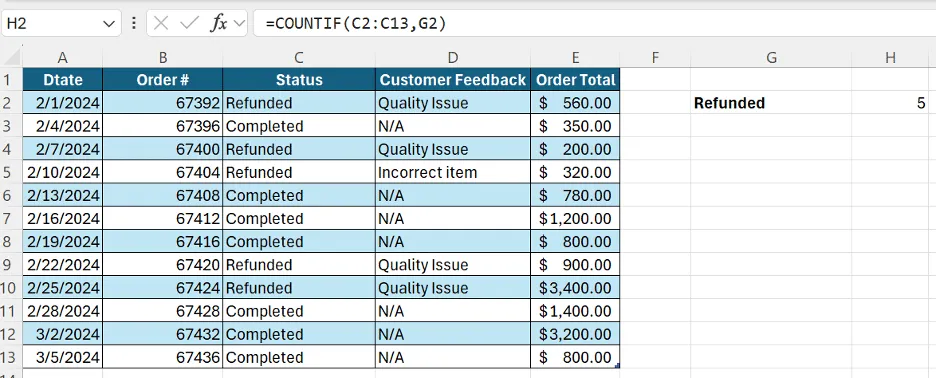
Let's assume you want to analyze the number of orders in the past quarter refunded to customers. Using the COUNTIF formula, the range of cells you want to evaluate is the status of the orders (column C). The criterion for the formula is the status of "Refunded" (cell G2). The formula returns 5 transactions refunded in the past quarter (cell H2).
To expand on the COUNTIF function and count the number of orders refunded due to quality issues, you can use the COUNTIFS formula, as illustrated in the image below.
The syntax for the COUNTIFS formula is:
=COUNTIFS(range to evaluate1, criteria1, [range to evaluate2, criteria2]…)
The range to evaluate Criteria 1 and Criteria 1 is the same as the previous example. The range to evaluate Criteria 2 is the Customer Feedback column (column D), and Criteria 2 is “Quality Issue” (cell G3). The formula returns 4 orders refunded due to quality issues (cell H3).
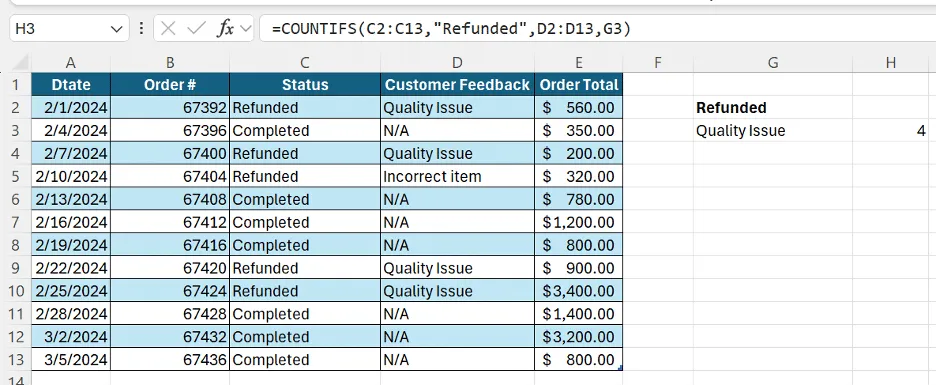
Again, we can see that with these simple examples, a user can manually count the number of refunded orders. However, in an accounting role, the datasets are almost always much larger than this, making the COUNTIF formula a valuable, time-saving, and reliable tool.
Benefits of Using SUMIF and COUNTIF for Accountants
Using these functions provides several benefits for accountants. Efficiency is key, as SUMIF and COUNTIF reduce the need for manual filtering, speeding up workflows and freeing up time for higher-value tasks. Accuracy is improved as these functions minimize human error by automating calculations, reducing inaccuracies commonly found in manual work. They also offer significant time savings, allowing accountants to focus more on analysis, decision-making, and insight generation rather than data cleaning.
Tips for Mastering SUMIF and COUNTIF Functions
To get the most out of these functions, consider using wildcards. Use * for broad matches or ? to replace individual characters. For example, if you want to sum amounts for clients whose names start with "A," you could use =SUMIF(A2:A100, "A*", C2:C100). For more complex scenarios, Excel offers SUMIFS and COUNTIFS, which allow multiple conditions to be applied. You could calculate total sales for "ClientName" within a specific date range by using SUMIFS, making the analysis more granular.
On That Note;
Mastering SUMIF and COUNTIF can significantly enhance efficiency for accountants dealing with large data sets. These functions allow you to summarize, analyze, and report on data with ease, turning time-consuming tasks into simple, automated processes. Whether totaling open receivables or counting specific transactions, these tools can make your work faster and more accurate. If you haven’t already, give these functions a try in your next financial analysis. You’ll quickly find that they can make managing large datasets far easier and more insightful.