
If you find yourself repetitively performing the same functions in your spreadsheets, Excel has a solution: create a macro. A Macro is a time-saving tool that allows you to record a sequence of formulas or formatting settings in Excel to automate functions with only a click of a button. While this capability is helpful for any job that regularly uses spreadsheets, it can be especially helpful for accountants who format their reports the same way every month or continuously use the same formulas on similar data sets.
For those who have yet to discover the brilliance of macros, this post will explore some of the nifty things accountants can do with Excel macros to simplify spreadsheet functions.
And for those who want expert training; take a look at our Excel Macro VBA Course for 6.0 NASBA CPEs.
This topic now covered with a video (or keep reading)!
1. Automate Data Entry Tasks
Accountants can use a macro to help speed up routine data entry tasks like entering in standard codes, dates, or customer IDs into financial forms.
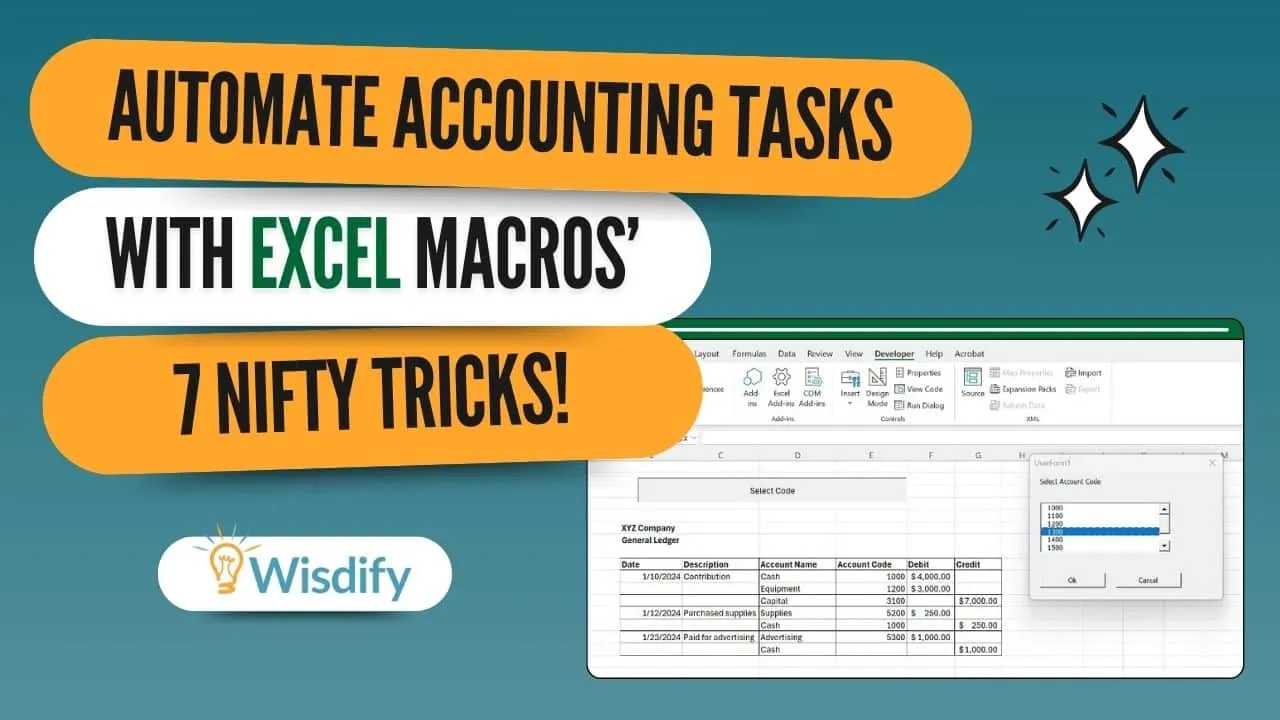
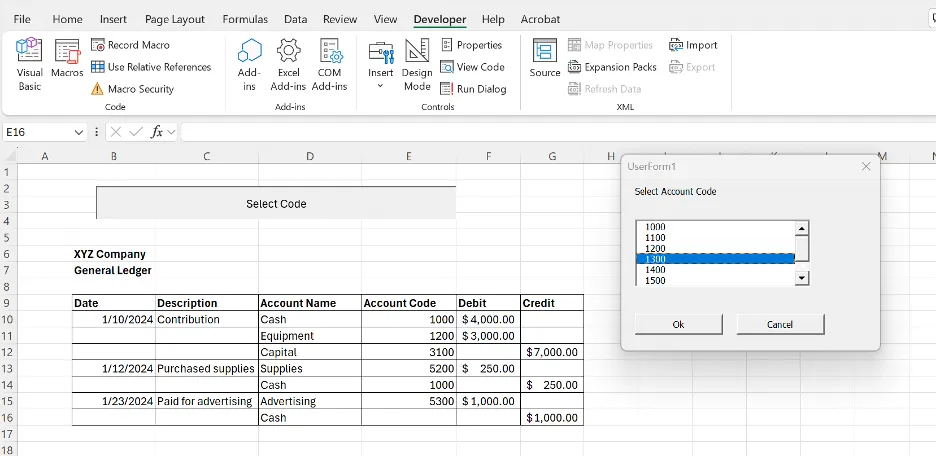
One data entry option is creating a user form with the Visual Basic Application. In the diagram below, we've created a form with a list of account codes for a general ledger. Instead of typing in a code every time or only choosing from a drop-down in certain cells, a user can add an account code to any cell in the spreadsheet. You only need to click the 'Select Code' button, and the list of codes to choose from appears from the form we created—saving time from entering the same codes repeatedly.
2. Simplify Data Cleaning and Formatting
Macros can also save time when formatting data if you prefer your data to look a certain way every time. When building a macro, you can add conditional formatting options so that when you run the macro, it applies the applicable visual selection to your file. A macro allows you to standardize the color, fonts, and borders of your data.
This can come in handy for accountants who create the same financial reports like income statements or balance sheets every quarter. Building a macro with your conditional formatting preferences, can ensure consistency across your reports by standardizing how they look without having to make manual adjustments.
3. Generate Financial Reports with a Single Click
Excel users can also use macros to create templates that they regularly use. After building the macro, you can add the template to a new workbook with a single click.
Accountants may find this helpful in creating monthly or quarterly financial reports. For consistency, the macro for the template can also include the appropriate formatting like bolding year headings or displaying cells with the appropriate number of decimals. You can also program the macro to pull data from sources and perform the calculations you need to generate your report. This is an obvious time saver but can also increase the reliability of your reports by reducing the number of errors if you were to manually create the report every month.
4. Speed Up Repetitive Calculations
When recording a macro, you go through all the formulas you need to calculate whatever you are trying to accomplish with your data. Then, when you run the macro, it automatically completes all these actions, sometimes within a matter of seconds. So, for any datasets you complete the same calculations for, you only need to record the macro once for it to perform the repetitive calculations that would otherwise take you more time to do manually.
Accountants know that when creating financial reports, we often use the same formulas, like calculating net income or tax rates on an income statement. Setting up a macro programmed already to do all these formulas is a huge time saver.
5. Batch Process Data from Multiple Sheets or Worksheets
If you have multiple files in a folder and want to combine them into a single Excel workbook, you can use VBA code to accomplish this. Instead of manually copying and pasting data or copying or moving sheets into a single workbook, you can batch-process the data and combine it into a workbook with a click of a button.
This can be convenient if you receive multiple files from clients or different departments every month that you need to combine into a single workbook.
6. Automate Pivot Table Creation and Formatting
Pivot tables, on their own, are a valuable tool for data organization and analysis. However, you can save even more time and ensure reliability by combining the usefulness of pivot tables with a macro. You can use a macro if you need to turn the same data repetitively into a pivot table or if you just want to apply the same formatting to all your different pivot tables.
For tax accountants who use the same tables to summarize clients' expenses for tax returns may find it useful to create a macro for easily turning these tables into pivot tables. Alternatively, accountants who use different pivot tables for different datasets but always like to use the same layout design for their financial reports may want to create a macro for style settings only.
7. Prepare Data for Audit and Compliance Checks
One way to use macros to increase the accuracy and reliability of your data is by automating your data review process. If you always do the same functions or use the same formulas to check your totals or ensure you aren't missing any data, you can create a macro to do this for you. Think of it as an extra layer of review. In a manual review process, you may overlook something or forget a review step. However, once a macro is set up correctly, it should perform the task accurately each time.
Accountants preparing for an audit can use a macro to check for inconsistencies in their data or flag missing cells. It can also be used for accuracy checks for financial reports like tying to general ledger figures or calculating the difference to balance your balance sheet.
For roles like accountants who rely heavily on Excel spreadsheets, macros are a nifty tool for increasing work efficiency and data reliability.